Showing posts with label HDFC BC Portal. Show all posts
Sunday, 3 May 2020
Monday, 27 April 2020
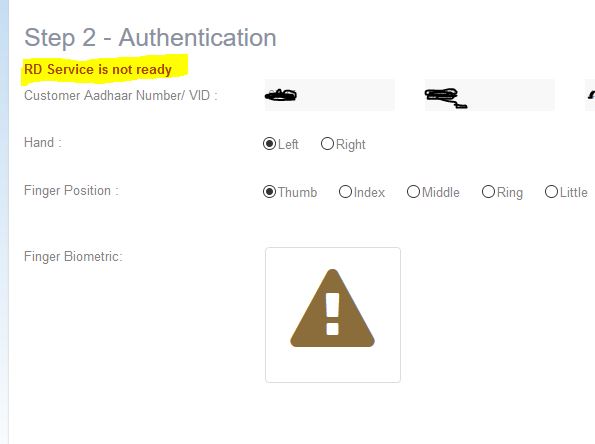
ஆர் டி சர்விஸ் நாட் ரெடி பிரச்சினை சரி செய்வது எப்படி
நீங்கள் ஹெச் டி எப் சியின் வாங்கி வணிக தொடர்பாளர் எனில் பின்வரும்
ஆர் டி சர்விஸ் நாட் ரெடி பிரச்சினை சரி செய்வது எப்படி என்பதை பார்க்கலாம்.
- டிஜி பே (DigiPay) உங்கள் கம்ப்யூட்டரில் இருந்தால் ஹெச் டி எப் சி வேலை செய்யாது. ஏதேனும் ஓன்று மட்டும் இருக்க வேண்டும் .
- உங்கள் கம்ப்யூட்டரில் விண்டோஸ் சரியாகவும் எந்தவித வைரஸ் பாதிப்பில்லாமல் இருப்பதையும் சரி பார்த்து கொள்ளுங்கள்.
- மோசில்லா பிரவுசரில் மட்டுமே ஹெச் டி எப் சி சரியாக வேலை செய்யும்.
- ஆர் டி சர்வீஸ் சரியாகவும் எப்பொழுதும் லேட்டஸ்ட் ஆகவும் இருக்க வேண்டும்.
நாம் முதலில் https://rdserviceonline.com/ என்ற இணையதளத்திற்கு சென்று அங்கு டவுன்லோட் என்ற பட்டனை கிளிக் செய்து விண்டோஸ் க்கான லேட்டஸ்ட் சாப்ட்வேர் டவுன்லோடு செய்யவும்.
உங்கள் கம்யூட்டரில் இருந்து பிங்கர் பிரிண்ட் டிவைஸை எடுத்து விடுங்கள் பின்னர் இதை செய்யவும் (Remove the Biometric Fingerprint sensor first from laptop).
உங்கள் கன்ட்ரோல் பேனலில் சென்று இதுவரை இருக்கும் மார்போ டிரைவரை அனின்ஸ்ட்டால் செய்யவும் (Uninstall Morpho driver and software from Control Panel)
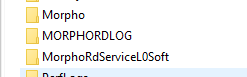
இந்த சி டிரைவ் லொகேஷனில் சென்று இருப்பதை டெலீட் செய்யவும் (Delete all the folders in C:\Morpho C:\MORPHORDLOG and C:\MorphoRdServiceL0Soft )
நீங்கள் டவுன்லோடு செய்த பைலில் இருப்பதை எக்ஸ்ட்டிராக்ட் செய்யுங்கள் (Extract the zip file and install Morpho software )
பின்னர் இன்ஸ்டால் செய்யுங்கள் இப்போதும் பிங்கர் பிரிண்ட் டிவைஸ் இணைக்கப்படக்கூடாது .
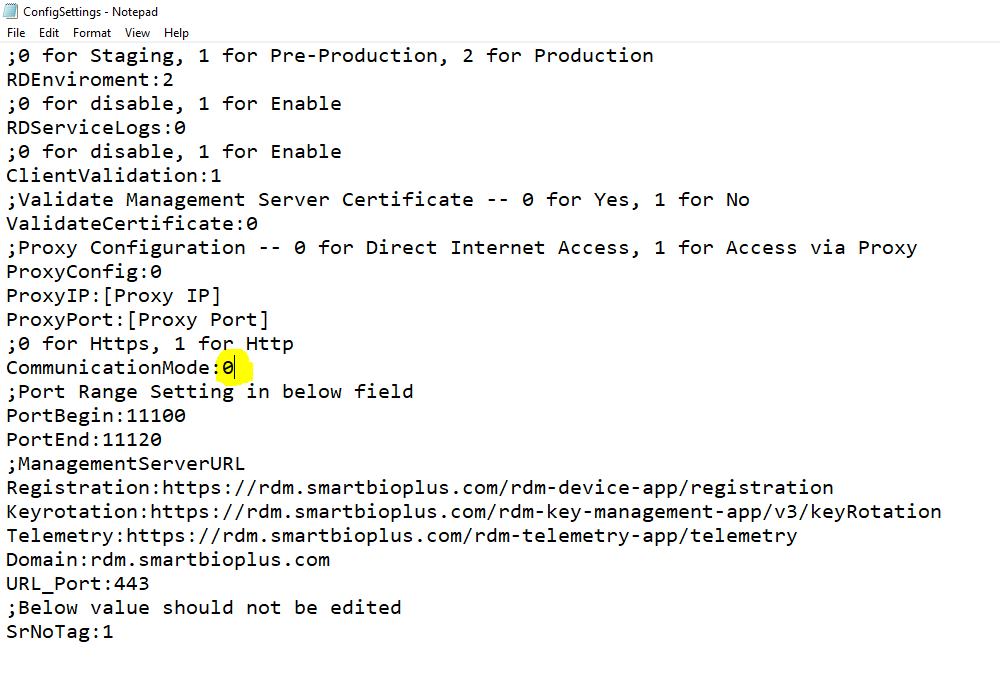
அதில் உள்ள ConfigSettings.ini பைலில் பின்வருமாறு செட்டிங் இருக்க வேண்டும்.
பின்னர் சேவ் செய்து கொள்ளவும், கம்ப்யூட்டரை ரிஸ்டார்ட் செய்யவும்
இப்போது பிங்கர் பிரிண்ட் டிவைஸ் இணைக்கப்பட வேண்டும்.
அதில் நீங்கள் சரியாக மண்ணும் பட்சத்தில் add Exception என காண்பிக்கும் அதை செய்ய வேண்டும்.
கீழ்காணும் எரர் கிரீன் வந்தால் நீங்கள் உங்கள் ConfigSettings.ini ஐ திரும்ப செய்ய வேண்டும்.
ஆர் டி சர்வீஸ் ஐ ரிஸ்டார்ட் செய்யுங்கள்.
இவ்வாறு செய்யும் பட்சத்தில் உங்களுக்கு இந்த பிரச்சினை சரியாகி விடும்.
அதன்பின் URL https://127.0.0.1:11100/ ஐ மோசில்லா இணையத்தில் கிளிக் செய்து
Add exception செய்தால் சரியாக பின்வருமாறு காண்பிக்கும்.
உங்களுக்கு ஆங்கில வழியில் இதை காண கீழ்காணும் லிங்கை பாருங்கள் https://mycscsolutions.blogspot.com/2020/04/rd-service-not-ready-issue-hdfc-bc.html
மேலும் ஏதேனும் உதவி தேவைப்பட்டால் பின்னூட்டம் செய்யுங்கள் உதவ முற்படுகிறேன்.
எனது மின்னஞ்சல் tryeasybusiness@gmail.com
Thursday, 16 April 2020
RD Service Not Ready Issue → HDFC BC Portal
Resolution:
Please make sure that you are not having Digipay and HDFC BC on the same server.
Step 1: Remove the Biometric Fingerprint sensor first from laptop
Step 2: Uninstall Morpho driver and software from Control Panel
Step 3: Delete all the folders in C:\Morpho C:\MORPHORDLOG and C:\MorphoRdServiceL0Soft
Step5: Extract the zip file and install Morpho software
Step6: Edit the file C:\MorphoRdServiceL0Soft\ConfigSettings.ini and change the below file to 0 (Zero)
Step 7: Restart the server
If the below error comes then you need to look at config settings and whether it is updated properly.
Step 9: If the exception comes and then add as an exception and close the browser, restart the computer. Click the URL https://127.0.0.1:11100/ on Mozilla Firefox and make sure you are getting the below screen
The above screen ensures that your application will run smoothly.
Step 10: Connect Fingerprint device and use Mozilla browser and login HDFC BC link
Step 11: Enter CSC ID and OTP and login, carry out the transaction as usual.
Step 12: RD Service issue would be resolved.
Points to Note:
- Only Mozilla Firefox is better compatible
- Digipay and HDFC will not work together on the same computer
- OS should be updated and should not be corrupted
- RD Service should be verified and validity should be there for fingerprint device
- The service should be running successfully.
Even if that does not help You can comment and will try to assist as and when time permits
Subscribe to:
Posts (Atom)